
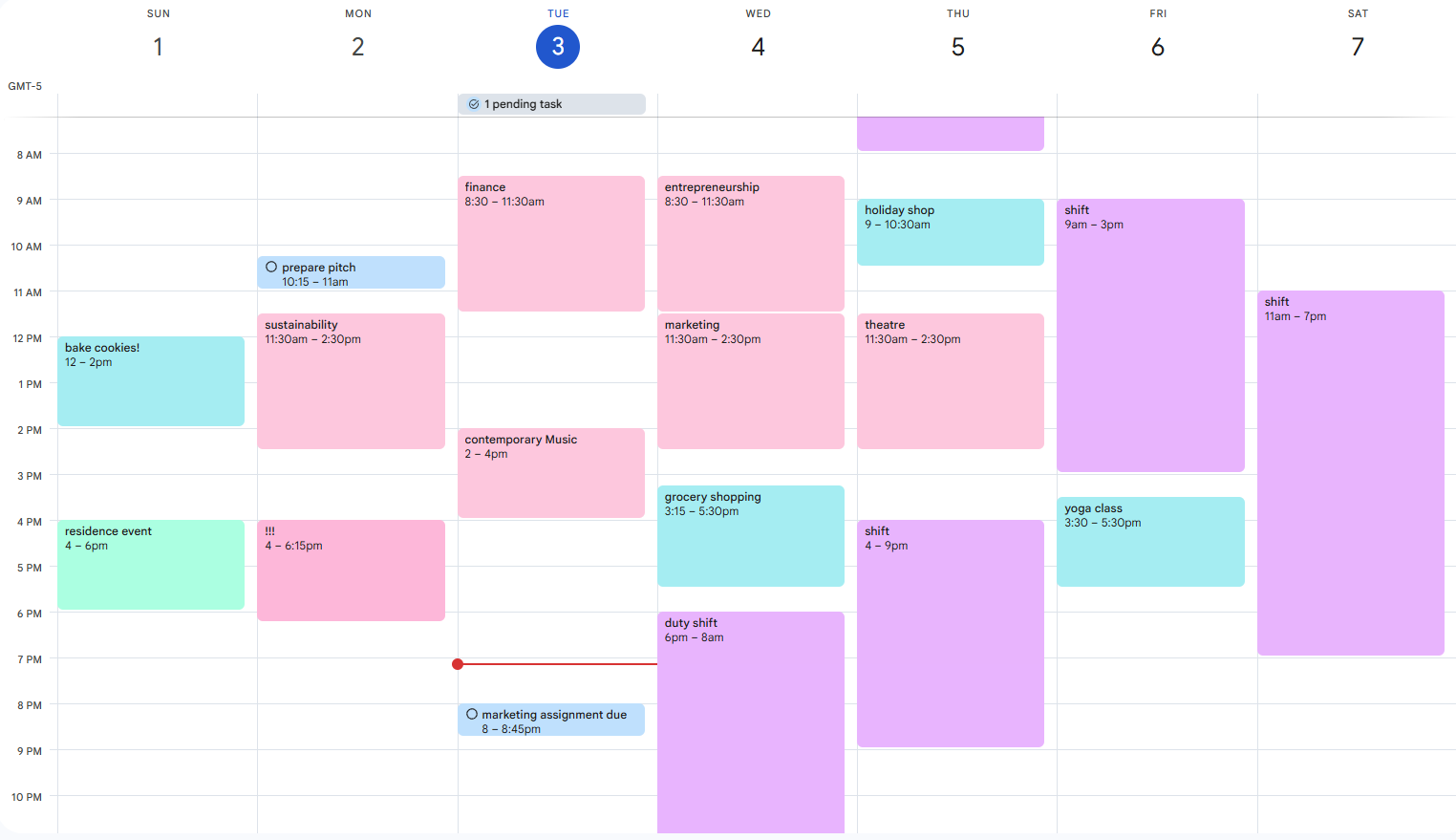
If you came here from my social media, welcome! Here’s a tutorial on how I set my calendar up, plus the hex codes for every colour palette.
Why a colour-coded calendar?
School can get chaotic fast! For a working student like me, between lectures, assignment deadlines, work shifts, and trying to have a social life, I find it’s easy to lose track of things. A well-organised Google Calendar lets you see your whole week at a glance, and the colours do half the work for you. I find that it’s also helpful to have it sync between my laptop and phone, for easy checking.
Step 1: Create a separate calendar for each part of your life
Instead of putting everything on one calendar, make a different one for each category. That’s what lets you colour-code and toggle things on and off.
- Open Google Calendar on a computer.
2. On the left sidebar, find Other Calendars and click the +.

3. Choose Create new calendar.

4. Name it (e.g. “Lectures”) and hit Create Calendar.

5. Repeat for each category.
Calendars Labels I recommend:
- Lectures
- Tutorials / Labs
- Assignments & Exams
- Study Sessions
- Work
- Social / Personal
Add your own: do you have a calendar for clubs, gym, or anything else?
Step 2: Change the colours
- Hover over a calendar in the left sidebar.
- Click the three dots next to it.
- Pick a colour from the default options, or click the + under the colour choices to enter your own hex code.
Custom hex codes are how you get a calendar that actually looks cohesive instead of using Google’s default colours. Below are the combos I use and love.
Colour combinations (with hex codes)


Tip: Make your deadlines the most eye-catching colour (red, coral, or terracotta in these palettes). Your brain learns to notice it right away.
Step 3: Add your events to the right calendar
When you create an event, use the dropdown at the bottom of the event window to choose which calendar it belongs to. For repeating classes, set it to repeat weekly so you only enter it once.
Below is a video tutorial I made for easy viewing:
Bonus tips
- Add reminders to assignments and exams (I do one week before and one day before).
- Tasks are useful for to-do and items you need to check off.
- Block out study time like it’s a class. I have a calendar called “Study Blocking” where I use it to indicate study time.
- Toggle calendars on and off with the checkboxes in the sidebar when you want to focus on one area.
- Check your week every Sunday night so there are no surprises.
- Set your new tab page to your calendar so that you always see what you have going on.
Final thoughts
Setting this up takes about 20 minutes, and it has made my semester so much less stressful, and stay on top of things. Try one of the palettes above, or mix and match to make your own. If you do, tag me and show me your setup!
Leave a comment if you have any questions, like and join my mailing list!
Follow me on Instagram and TikTok for more study tips!
Leave a Reply